 Stop being confused about accessibility.
Adobe InDesign now includes an AI Alt-text generator. The new InDesign AI Alt-text generator automatically creates image descriptions for accessibility. But should designers trust it? Here’s what to know before using automated Alt-text in accessible PDFs.
Music: https://www.bensound.com
The 2026 release of Adobe InDesign includes a new feature, the AI Alt-text generator, which automatically generates Alt-text for images for accessibility. Should designers who create accessible PDFs from InDesign trust it as part of their accessibility work? Or is it more of a risk? If you’re creating accessible documents in InDesign, here’s what you need to know.
Hi. I’m Colleen Gratzer, and I teach designers accessibility in plain English and without you having to sacrifice your designs.
AI-generated Alt-text in Adobe InDesign
Let’s talk about the latest InDesign accessibility feature that was released with InDesign 2026 in January, version 21.2. It’s the AI Alt-text generator. Automated Alt-text sounds like it could be a cool, time-saving feature.
There’s been a lot of talk about it online, and, let me say, I have yet to see anything positive about it. I’ve also tried it out for myself.
But I didn’t go rush to try out the new version of InDesign. I mean if it ain’t broke you don’t have to fix it, right?
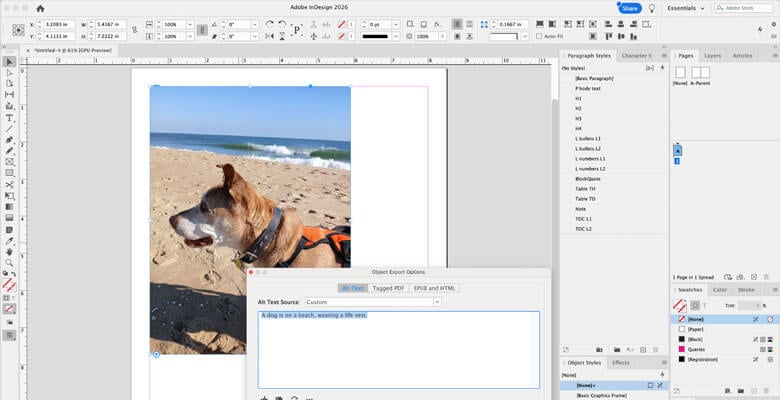
But let me tell you, once I installed the latest version, I immediately saw what many designers have complained about, and rightly so. I saw this T icon on image frames and was like, what’s that? The Alt-text on the images had suddenly all been modified.
Well, that’s the Alt-text generator. The AI Alt-text generator is enabled by default for many users. Apparently, it has to do with whether or not you have a Pro and Enterprise plan and with unlimited generative AI credits.
Every time you go to generate Alt-text for an image, it uses one credit.
How to Generate Automated Alt-text in InDesign
OK, so let’s take a look at how the Alt-text generator works.
First, you place an image into your InDesign file. Then you’ll see a T icon (for “text”) at the bottom edge of the image frame. This is telling you that the image has automatically generated Alt-text.
If you click Option (on Mac) or Alt (on Windows) and select the T icon, it will bring up the Object Export Options window, where you can then edit the Alt-text.
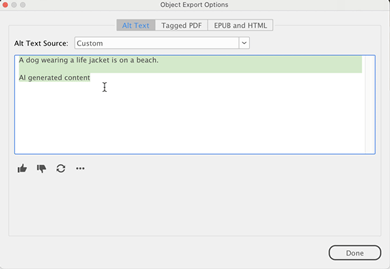
You can give it a thumbs up or a thumbs down depending on the result, how accurate it is.
There is also an option to regenerate new Alt-text for an image. Is that like Russian roulette for Alt-text? Let’s throw spaghetti at the wall and see what sticks.
Any images that already have Alt-text from a previous version of InDesign will not display the T icon, or at least they aren’t supposed to. I think I saw a few designers saying that this happened anyway.
But, by the way, if you paste an image rather than use the Place command, it seems to bypass the AI Alt-text generator.
Does Adobe InDesign’s AI Write Accurate Alt-Text?
So you might be wondering how accurate is InDesign’s AI Alt-text generator. Does it actually write good Alt-text?
Examples of AI-Generated Alt-text in Adobe InDesign
Let’s take a look at this picture of my dog on the beach. It says, “A dog wearing a life jacket is on a beach.”
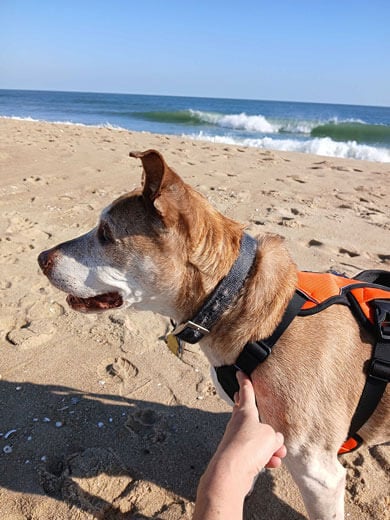
It’s not technically a life jacket, but I could see how anybody would think it would be that. It’s really just something to help me lift him up if I need to.
But what if this picture were being used on a product page to sell this particular item? You would need to pay attention to that level of detail. So that would be wrong. That would be incorrect Alt-text in that case.
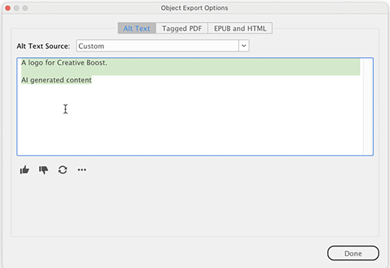
Now let’s try a logo. It says “A logo for Creative Boost.” I wouldn’t necessarily write it like that. I would say just “Creative Boost logo.” But that’s good. It’s accurate.
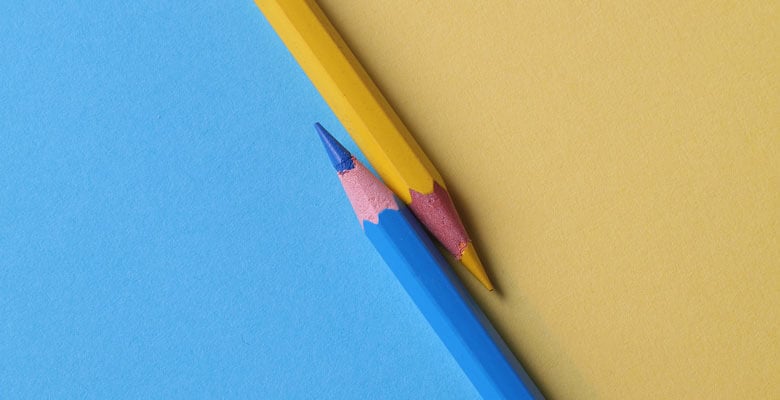
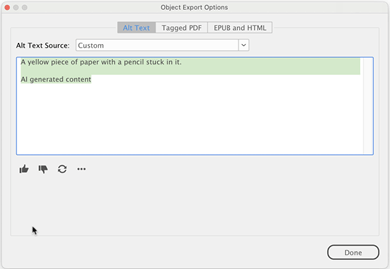
Let’s try this picture with two pencils. It says, “A yellow piece of paper with a pencil stuck in it.” Not entirely accurate.
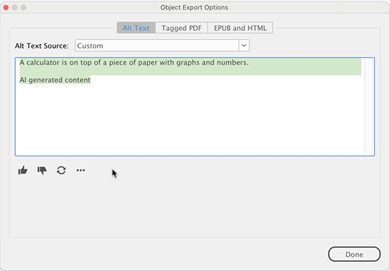
Here’s an image of a calculator. The Alt-text is “A calculator is on top of a piece of paper with graphs and numbers.” That’s accurate.

I’m sure image quality plays a big factor in this too.
Here’s a mockup of a brochure, and it says, “A book is open to a page with a pie chart and a bar graph.”
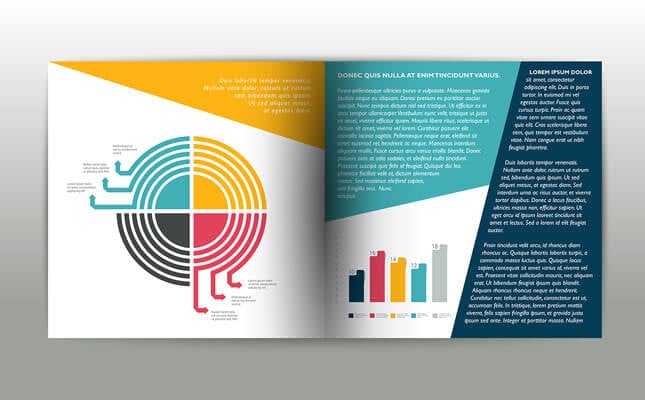
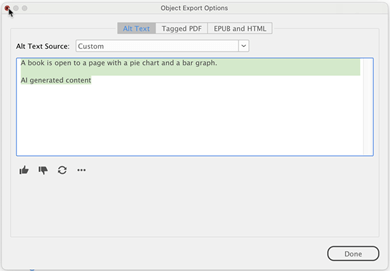
That’s also good.
Of course, it always depends on how the image is being used too, but this so far is pretty accurate. You may or may not need as much detail, or you might need to describe it differently based on how you’re using the image, why you’re including that image.
Many designers have complained about it describing images inaccurately, with quite a few saying that it has generated “nude figures” as logo Alt-text. I mean, seriously?!
Clearly, this is a huge problem, and it’s not just about incorrect Alt-text. I mean, if that Alt-text were to go unchecked and it didn’t get fixed, that could really hurt an organization’s reputation. And that goes beyond being considered unprofessional.
Should Designers Trust Adobe InDesign’s AI Alt Text Generator for Accessibility?
So can designers trust this feature?
You should never ever trust an automated tool for Alt-text. You always have to review whatever it comes up with.
But here’s something else that’s an issue…
If you haven’t added Alt-text to images that should have it, you might want an automated checker to catch that for you. If you don’t add Alt-text to an image that’s in the reading order, even the Acrobat accessibility checker will flag it.
But if InDesign’s Alt-text generator adds the Alt-text automatically to an image, an automated checker will pass it because the Alt-text is present. Even poor Alt-text is still Alt-text, so it will pass the checker.
You really have to be mindful of checking Alt-text on all images.
One thing I am concerned about is that designers who don’t know much about accessibility will use this feature and think it’s helpful simply because it’s adding something for Alt-text. Adding bad Alt-text isn’t better than no Alt-text.
And not all images should have Alt-text either!
Common Complaints From Designers About Adobe InDesign’s AI Alt Text Generator
Something else I don’t like about the Alt-text generator is that it seems that you have to remove the AI-generated Alt-text image by image manually, and that is a huge time suck. There should be a way to remove it for all images in the entire document in one fell swoop.
Otherwise, you have to right- or Control-click and go to Object Export Options or Alt/Option-click and remove the Alt-text on each image.
Again, this is supposed to be a feature?
Many designers have also complained about performance issues when opening documents with a lot of images and the T icon appearing even after disabling the option.
How to Turn Off Adobe InDesign’s AI Alt-Text Generator
If you’re wondering if you can turn off InDesign’s AI Alt-text Generator, I have good news.
Thankfully, you can adjust the settings or completely turn off InDesign’s AI Alt-text generator.
If you want it off for all documents, then:
- Close all InDesign files.
- If you’re on Mac, go to or InDesign > Preferences > Generative AI. If you use Windows, go to File > Preferences > Generative AI.
You can turn off the feature for good by unchecking both options here.
If you want InDesign to generate the Alt-text, leave “Auto-generate Alt-text when placing images” checked. You can just turn off “Add ‘AI-generated content’ tag for auto-generated Alt text'” if you want to have it add Alt-text but without the additional credit line to AI, which, by the way, should never appear in the final file.
Nothing screams “We have no idea what we’re doing with accessibility” or “We don’t care about accessibility other than ticking a box” other than actual evidence of Alt-text that’s been added by AI and with a note saying it was generated that way.
Why? Because that means no one reviewed it. If they had, then they would have removed the note about it being AI-generated. It’s not a good look.
Let me know what you think of InDesign’s AI Alt-text generator and if you’ve found it to be helpful in your workflow at all.
While Adobe InDesign’s AI Alt-text generator may save time, designers who create accessible PDFs should always review and edit automated Alt-text to ensure accuracy and accessibility.
I laughed out loud when I read that designers have been seeing the “nude figure” AI-generated Alt-text show up for them (wrongly). That recently happened for me as well, for an image of a painting with no people in it. It was so odd!! And it would have been potentially scandalous for my employer.
I never use this feature, but I keep it on because like to see what Alt-text it comes up with, if only to compare to my own Alt-text or to get ideas.