 Stop being confused about accessibility.
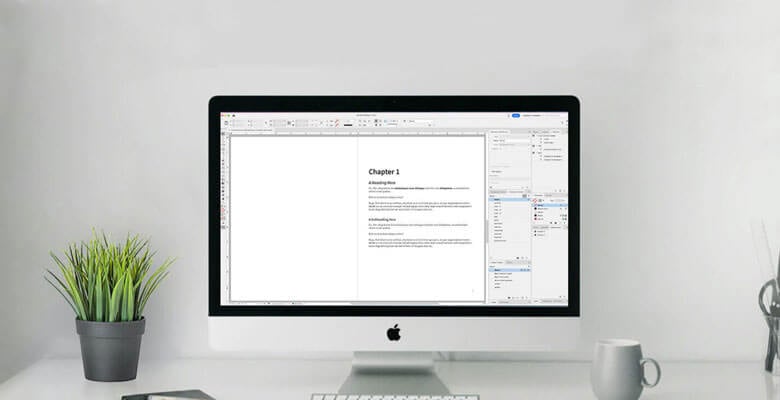
Think an accessible InDesign template guarantees PDF accessibility? Think again. Learn why templates aren’t enough for creating accessible PDFs from InDesign.
Music: https://www.bensound.com
A lot of designers and a lot of clients will often ask me if I can just create an accessible template for them in InDesign, so they can work from that to create accessible PDFs from InDesign on their own.
They expect that they will just open the file, add some text and images to it, and export to PDF and—poof!—they will have an accessible PDF. It does not work that way.
I’ve also had some clients tell me they thought they could take InDesign files I had made accessible for them and just export an accessible PDF every time they made the edits. But you can’t do that either.
Listen: an accessible InDesign template sounds like a magic solution. But that is not the case. There are things you absolutely must know and do when working with an accessible InDesign template.
Using InDesign Properly
First, you must know how to use InDesign properly.
Now when I say this, most designers are like, “Yeah, of course, I am using InDesign properly. I’ve been using InDesign for more than 20 years.”
I hear this all the time.
But then I take a look at their InDesign files, and I see Basic Paragraph is in use for all text or that a few paragraph styles are there but not applied to all text. There was a lot of styling from the toolbar to override some of those paragraph styles.
Maybe parent pages are not in use. They may have even manually typed in page numbers on every single page. I’ve seen that in a document with hundreds of pages.
Sometimes I see individual text frames on every page that are all independent of one another, even for running copy.
They’ve manually typed in table of contents entries and their corresponding page numbers.
They’ve maybe drawn individual text frames and rules for each table cell.
These are not only inefficient layout practices. But they are problematic for accessibility too.
That means that the content won’t be properly structured. It won’t be in the correct reading order. That means it won’t make sense.
It also means you, as the designer, or whoever is going to make the work accessible will need to clean-up and likely redo a lot of the work to get the file set up correctly.
When you use the proper layout practices in InDesign, it actually goes a long way to making that document inherently accessible.
Using InDesign’s Accessibility Features
In addition to using InDesign properly, you still need to understand how to use InDesign’s accessibility features, such as the various ways you can add Alt-text in InDesign.
And for crying out loud… Do yourself a favor and turn off the AI Alt-text generator! No, it’s not good for accessibility. I talked about the issues with it in a previous episode.
You also need to know where to set accessibility tags. A lot of graphic designers set them in the wrong place. They end up setting XML tags in the Structure pane or via the Utilities menu then Tags, rather than setting HTML export tags.
Using InDesign Accessibly
Even if you start with an accessible InDesign template or an existing file that’s fully laid out already, you still need to know how to make any text edits or styling changes accessibly.
For instance, if you go and add additional text and don’t style it properly, then the accessibility is broken.
If you add additional images and don’t add them to the reading order and Alt-text to them, the accessibility is broken.
If you add new text frames and don’t put them in the reading order, the accessibility is broken.
And then when it comes time to export to PDF, if you don’t export correctly, you won’t have an accessible PDF. You may not realize that when you open it in Acrobat. It won’t pass the Acrobat accessibility checker.
But is it not passing the checker because there are legit accessibility issues in the PDF that you need to fix, or are they false positives simply because the PDF wasn’t exported correctly?
Limitations of an Accessible InDesign Template
Even if you get everything right in InDesign, an accessible InDesign template (or even any accessible InDesign file, for that matter) cannot do everything that is needed for accessibility. An “accessible” InDesign file is really an “accessible-as-possible” InDesign file.
InDesign also does not check for contrast and use-of-color issues.
InDesign will get you most of the way there, though, with accessibility. But once you export to PDF, there is more accessibility work to be done to ensure the PDF is accessible.
There are always things you have to do in Acrobat that you cannot do in InDesign. You have to always do a lot of manual checks of tags, reading order, etc. No template can do that for you.
So, you see, an accessible InDesign template is not the be-all, end-all for creating accessible PDFs from InDesign. It’s a really great start.
An accessible InDesign template does not replace the accessibility knowledge you need to have in order to use it.
Accessible InDesign Templates for PDF Accessibility
So then you might be wondering how can an accessible InDesign template actually help you?
An accessible InDesign template will save you a ton of time in your workflow. As the structure is set up already, you can just start adding your own content to it.
An accessible InDesign template is also good to have as an example of a file that is set up properly for accessibility that you can refer to when you create other InDesign files or work with existing ones.
The accessible InDesign template that I created—the Essential Accessible InDesign Template, has the proper and accessible setup for:
- Master pages
- Table of contents
- Articles panel
- Layers panel
- Paragraph styles
- Character styles
- Object styles
Plus, it includes a cover and front matter, table of contents and two chapters with dummy content. It’s great for documents with running copy, even long documents.
I also have the Ultimate Accessible InDesign template, which is a bundle of various InDesign templates, including some with more complex setups, even for infographics. Right now, I only currently offer that to students, because it makes use of certain techniques that I teach inside my Accessible PDFs From InDesign course.
But, anyway, the takeaway is: make sure you know what to expect with an accessible InDesign template.
It’s an “it’s accessible as InDesign allows” file, because InDesign can get most of the way there, but not all of the way there. There’s always going to be work to be done in the PDF, and you still have to understand how to use it accessibly to maintain the accessibility of that template.
So make sure that you understand this and you don’t just think this is going to be like some magic bullet that is going to solve the accessibility problem if you’re not already using InDesign correctly and you don’t know accessibility practices.